The transformation of the smartphone from a basic communication device into a sophisticated imaging tool represents one of the most significant shifts in modern technology. For over a decade, Apple’s iPhone has remained at the forefront of this evolution, transitioning from a simple point-and-shoot interface to a device capable of producing results that rival Digital Single-Lens Reflex (DSLR) cameras. While the native iOS Camera application is designed for ease of use, a suite of advanced manual controls and computational photography features allows users to manipulate depth of field, exposure, shutter speed, and color fidelity with professional precision. This guide examines the technical mechanisms behind these controls and provides a roadmap for photographers seeking to maximize the potential of their mobile hardware.
The Evolution of iPhone Imaging: A Chronology of Innovation
To understand the current capabilities of the iPhone camera, one must look at the trajectory of its hardware and software development. In the early iterations of the device, the camera was limited by fixed-focus lenses and low-resolution sensors. However, the introduction of the iPhone 4 in 2010 marked the beginning of mobile photography as a serious pursuit, offering a 5-megapixel sensor and high-definition video.
The most pivotal moments in this chronology include:
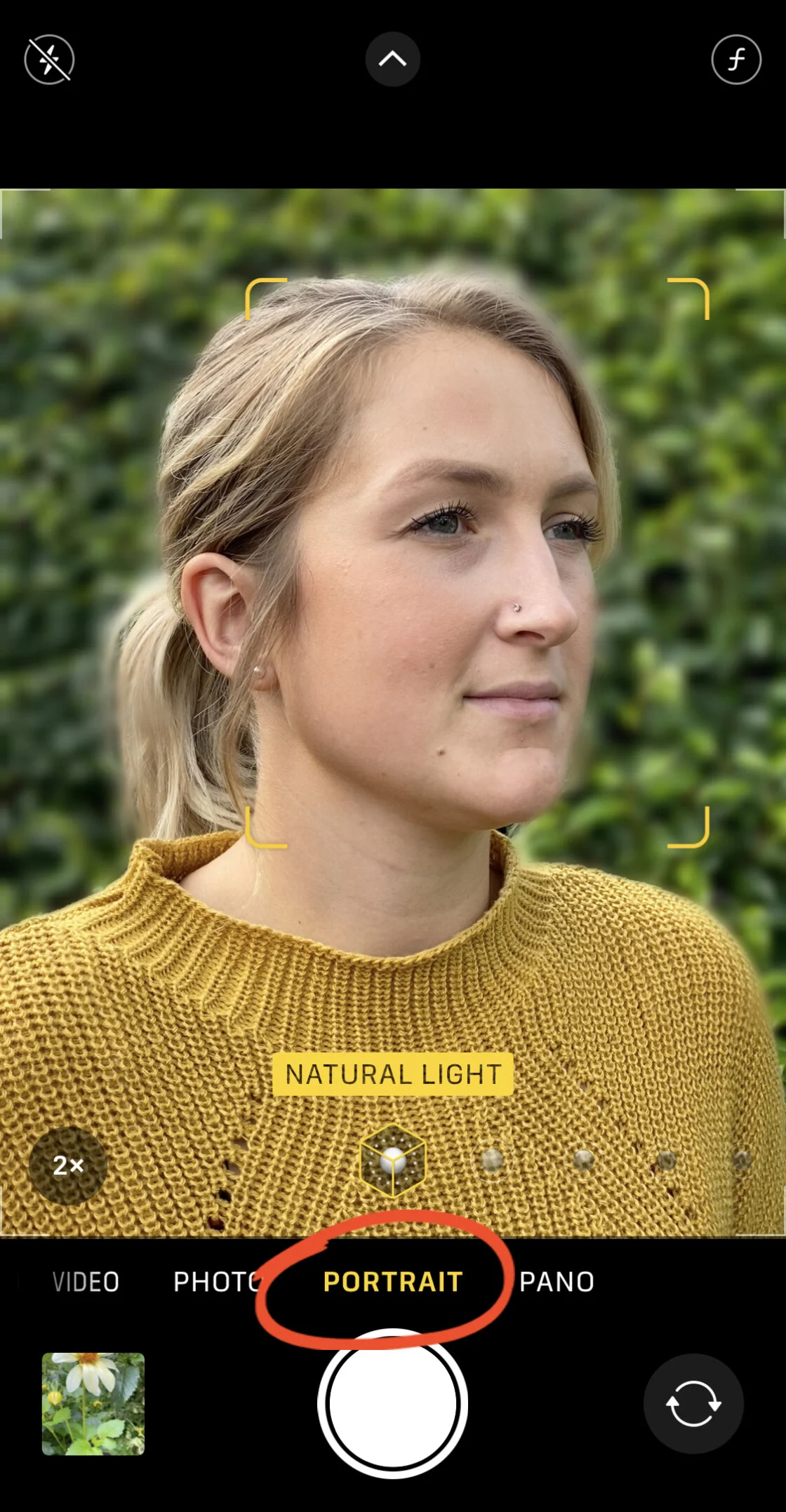
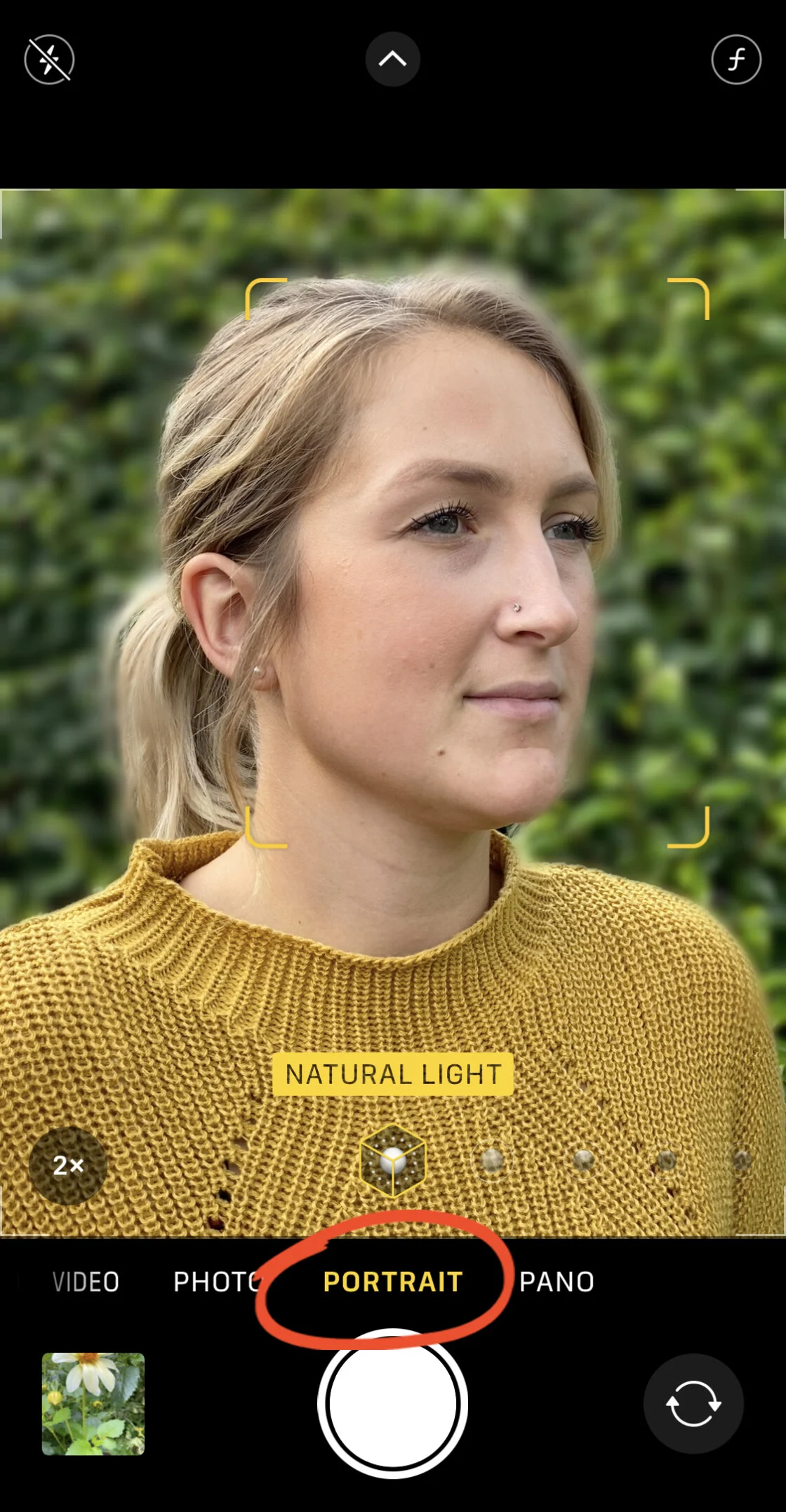
- 2016 (iPhone 7 Plus): The introduction of the dual-lens system and Portrait Mode, which used software-based depth mapping to simulate "bokeh" or background blur.
- 2019 (iPhone 11 Series): The debut of Night Mode and the Deep Fusion processing system, which significantly improved low-light performance through multi-frame image stacking.
- 2020 (iPhone 12 Pro): The release of Apple ProRAW, giving photographers the ability to capture RAW data while still benefiting from computational photography.
- 2023 (iPhone 15 Pro Max): The integration of a tetraprism lens for 5x optical zoom and the ability to record video directly to external drives, further bridging the gap between mobile and professional cinema gear.
Today, the iPhone 15 and 16 series utilize 48-megapixel main sensors and the Photonic Engine, a computational model that applies Deep Fusion earlier in the imaging pipeline to preserve more detail and dynamic range.
Mastering Depth of Field and Background Compression
One of the primary characteristics that distinguishes professional photography is a shallow depth of field—a technique where the subject is sharp while the background is aesthetically blurred. On a traditional DSLR, this is achieved physically by widening the lens aperture (lowering the f-number). Because iPhone lenses have a fixed physical aperture, Apple utilizes computational photography to mimic this effect.
Software-Driven Portrait Mode
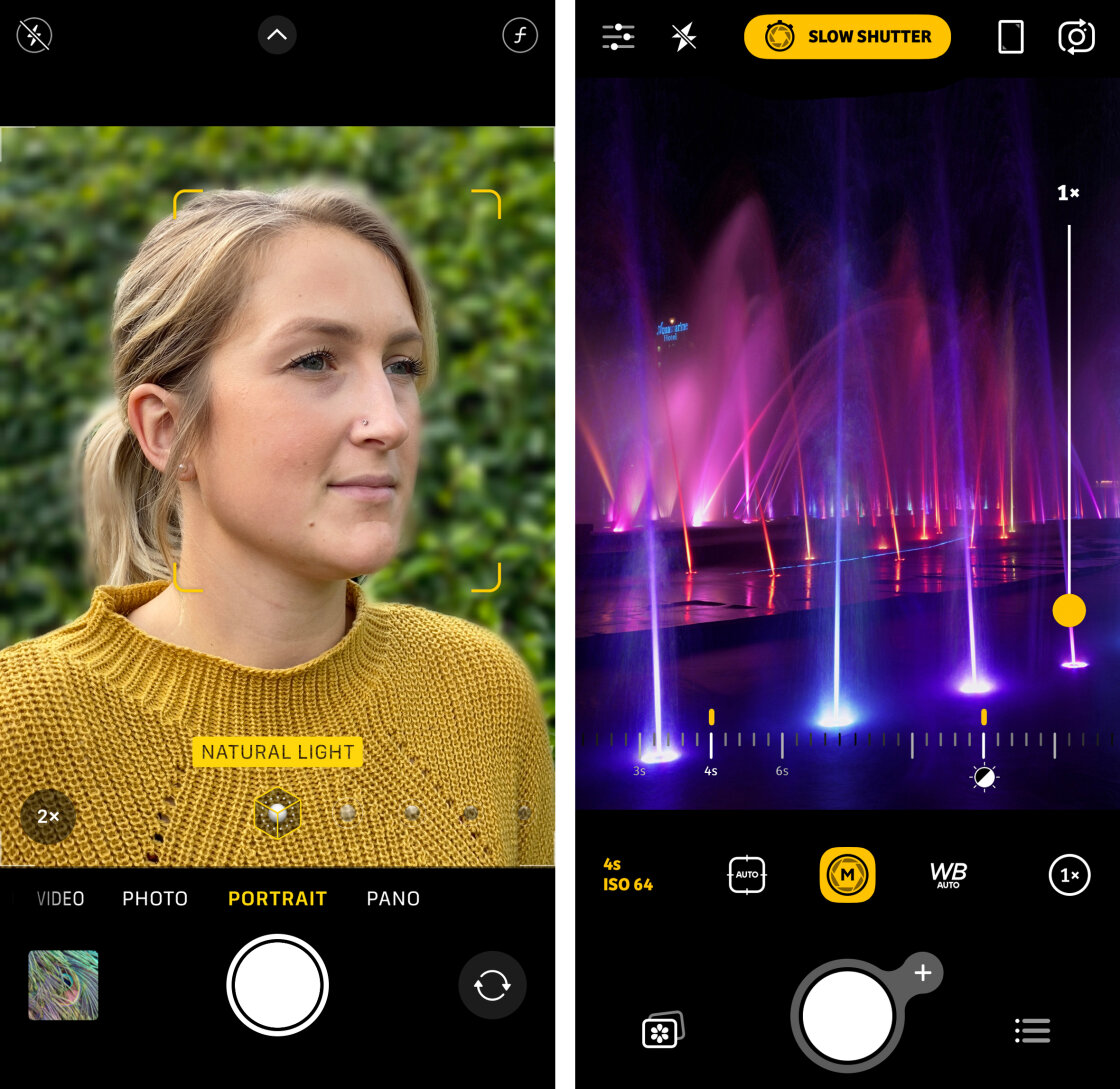
Portrait Mode remains the most accessible way to achieve background blur. Using either dual lenses or LiDAR (Light Detection and Ranging) sensors on Pro models, the device creates a "depth map" of the scene. This allows the processor to distinguish between the foreground subject and the background. On models from the iPhone 11 onwards, users can adjust the "f-stop" simulation even after the photo has been taken. By selecting a portrait in the Photos app and tapping "Edit," users can move the Depth slider to increase or decrease the intensity of the blur.

Physical Proximity and Macro Photography
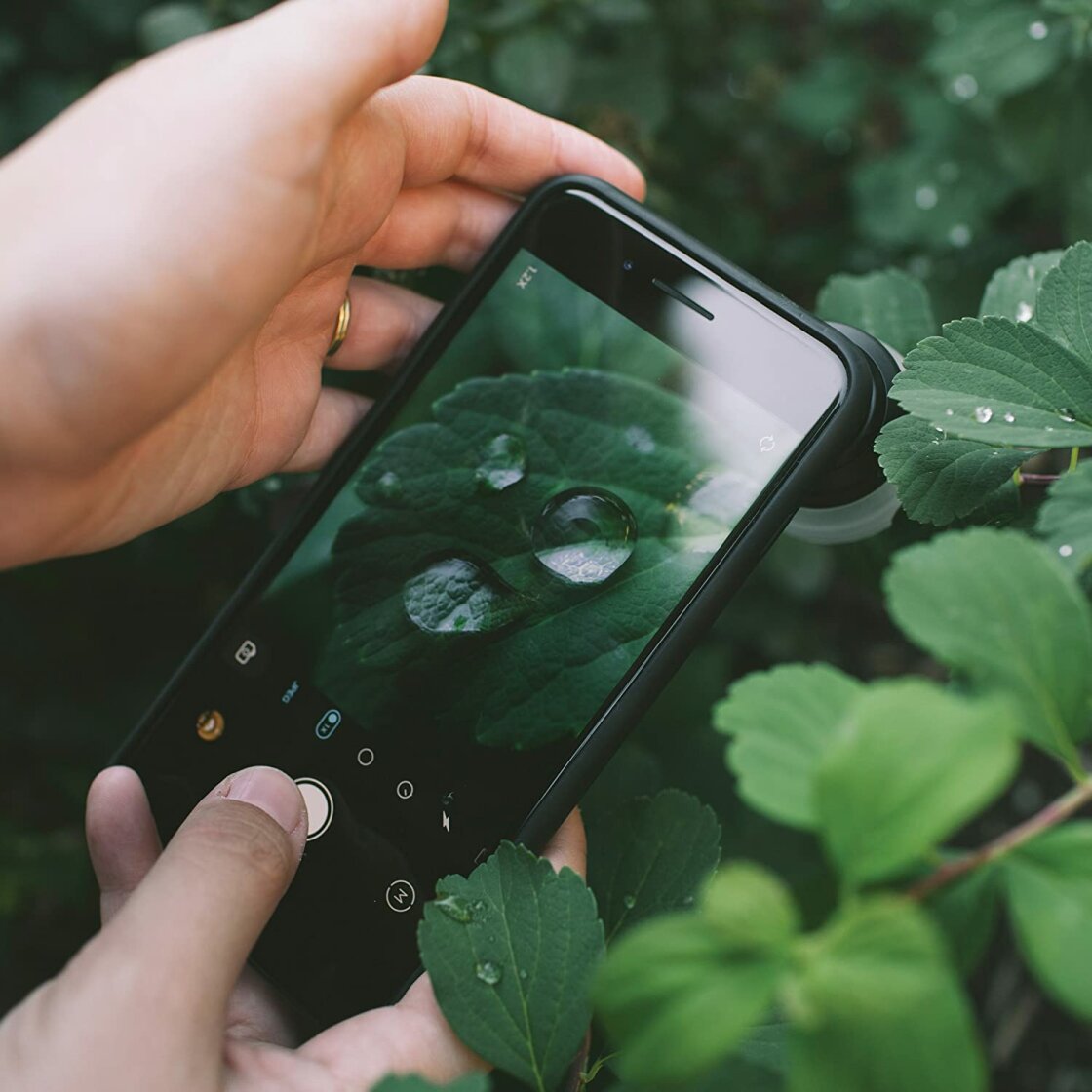
For those seeking a more natural blur without software intervention, physical proximity is the key. The closer a lens is to its subject, the shallower the depth of field becomes. This is particularly effective on newer models equipped with Macro mode, which allows the camera to focus on objects just two centimeters away. Using an add-on macro lens, such as those produced by Moment or Sandmarc, can further enhance this effect, allowing for extreme close-ups of textures, insects, and flora with a genuine optical blur that software cannot perfectly replicate.
Precision Focusing and Locking Mechanisms
In complex scenes, the iPhone’s autofocus may struggle to identify the intended subject, especially in high-contrast environments or when shooting through foreground obstructions.
Tap-to-Focus and AE/AF Lock
The fundamental control for any mobile photographer is the tap-to-focus feature. By tapping any area on the viewfinder, the user manually sets the focus point. However, if the camera moves or the lighting changes, the device will attempt to readjust. To prevent this, users should utilize the AE/AF (Auto Exposure/Auto Focus) Lock. By pressing and holding the focus point for two seconds, a yellow box appears at the top of the screen indicating the lock is active. This is essential for street photography, where a photographer may want to pre-focus on a specific spot and wait for a subject to enter the frame.
Manual Focus via Third-Party Applications
For scenarios requiring absolute precision, such as focusing on a single water droplet among many, the native app may reach its limitations. Professional-grade applications like Camera+ 2 or Halide provide a manual focus slider. This allows the user to rack focus across the focal plane with granular control, ensuring that the sharpest point of the image is exactly where it needs to be.
Exposure Dynamics and High Dynamic Range (HDR)
Exposure refers to the total amount of light reaching the sensor. An improperly exposed image will either be "blown out" (too bright, losing highlight detail) or "crushed" (too dark, losing shadow detail).
Manual Exposure Compensation
In the native Camera app, exposure can be adjusted by tapping the screen and sliding the sun icon up or down. On iPhone 11 and later models running iOS 14 or higher, a more precise Exposure Compensation slider is available in the hidden menu (accessed by tapping the arrow at the top of the viewfinder). This allows for adjustments in increments of ±2.0 EV (Exposure Value).
The Role of Smart HDR
Apple’s Smart HDR 5 technology is designed to handle high-contrast scenes, such as a backlit landscape. The camera captures several frames at different exposure levels and merges them into one. While this usually results in a balanced image, there are creative instances where a user might want to disable HDR—such as when intentionally shooting silhouettes. Disabling "Smart HDR" in the system settings allows for more dramatic, high-contrast shots that retain deep, black shadows.
Shutter Speed and Motion Control
Shutter speed determines the duration the sensor is exposed to light. It is the primary tool for either "freezing" action or conveying a sense of movement.
Freezing Action
A fast shutter speed (e.g., 1/1000s or higher) is necessary for sports or wildlife photography to eliminate motion blur. While the iPhone automatically increases shutter speed in bright light, manual control via third-party apps allows users to ensure crisp captures of fast-moving subjects even in challenging conditions.
Long Exposure and "Silky" Water
Conversely, a slow shutter speed (e.g., 1 second to 30 seconds) allows for long exposure photography. This technique is used to make flowing water appear like silk or to capture light trails from traffic. While the iPhone’s "Live Photo" feature can simulate a long exposure after the fact, dedicated apps like Slow Shutter Cam or the "Slow Shutter" mode in Camera+ 2 provide superior results. For any exposure longer than 1/30s, the use of a tripod is mandatory to prevent "camera shake," which would otherwise blur the entire image.
ISO Sensitivity and Noise Management
ISO measures the sensor’s sensitivity to light. In low-light environments, the iPhone will automatically increase the ISO to brighten the image. However, high ISO settings introduce "digital noise"—a grainy texture that degrades image quality.
Professional photographers aim for the lowest possible ISO setting to maintain a clean image. On the iPhone, this often requires a trade-off: to use a low ISO in the dark, the shutter speed must be slowed down, which again necessitates a tripod. The introduction of Night Mode has mitigated this significantly by using computational algorithms to reduce noise, but for those shooting in ProRAW, manual ISO management remains a critical skill for preserving "clean" pixels in the shadows.
White Balance and Color Fidelity
Light sources have different "color temperatures," measured in Kelvin. Incandescent bulbs produce warm, yellow light, while overcast skies produce cool, blue light. While the iPhone’s Auto White Balance (AWB) is generally accurate, it can occasionally misinterpret a scene, leading to unnatural skin tones or color casts.
Manual white balance controls allow users to select presets such as "Daylight," "Cloudy," or "Fluorescent." Advanced users can even set a custom white balance by focusing on a neutral grey card. This ensures that colors remain consistent across a series of shots, which is vital for professional portfolios and commercial work.
Broader Impact and Industry Implications
The democratization of high-end photography through the iPhone has disrupted the traditional camera market. According to data from the Camera & Imaging Products Association (CIPA), shipments of digital cameras have declined by over 90% since their peak in 2010, largely due to the rapid advancement of smartphone imaging.
Industry analysts note that the "Pro" branding of modern iPhones is not merely marketing. The ability to shoot in 10-bit Log video and 48MP ProRAW has integrated the iPhone into professional workflows. Major publications, including Time and The New Yorker, have featured cover photos shot entirely on iPhones. This shift suggests that the future of photography lies not just in the size of the glass lens, but in the power of the silicon chip behind it.
As computational photography continues to advance, the line between mobile and traditional cameras will continue to blur. For the modern creator, mastering these advanced iPhone camera controls is no longer a niche skill—it is a fundamental requirement for navigating the contemporary visual landscape. By understanding the interplay of light, focus, and digital processing, any user can transform their device into a powerful engine for artistic expression.