The evolution of smartphone technology has fundamentally altered the landscape of professional and amateur photography, with the ability to create a "bokeh" effect—a soft, out-of-focus background—becoming one of the most sought-after features for mobile users. Traditionally, this aesthetic was the exclusive domain of Digital Single-Lens Reflex (DSLR) and mirrorless cameras equipped with large sensors and wide-aperture lenses. However, through the integration of sophisticated hardware and computational photography, Apple has democratized this capability, allowing iPhone users to isolate subjects and create professional-grade imagery with minimal effort. This transition from hardware-dependent optics to software-driven "computational bokeh" represents a significant milestone in the history of mobile imaging.
The Chronology of Portrait Mode and Depth-of-Field Innovation
The journey toward high-quality background blur on the iPhone began in 2016 with the release of the iPhone 7 Plus. This device introduced the first dual-camera system, utilizing a wide-angle lens and a telephoto lens to calculate a "depth map." By comparing the slightly different perspectives of the two lenses, the iPhone’s software could distinguish between a foreground subject and the distant background.
In the years following, Apple refined this technology across several iterations:
- 2017-2018 (iPhone X and XS): Introduced the "Neural Engine" within the A11 and A12 Bionic chips, allowing for more precise edge detection, particularly around complex textures like hair.
- 2019 (iPhone 11 Series): Expanded Portrait Mode to include wide-angle lenses, enabling the effect for more than just human subjects, including pets and objects.
- 2020-2022 (iPhone 12 through 14 Pro): The introduction of LiDAR (Light Detection and Ranging) on Pro models revolutionized low-light portraiture. LiDAR sends out laser pulses to measure distances instantly, creating a highly accurate 3D map of a room regardless of lighting conditions.
- 2023 (iPhone 15 Series): Introduced "Automatic Portrait" capture, where the device stores depth information for every standard photo taken, allowing users to apply or adjust the blur effect retroactively in the Photos app.
The Mechanics of Computational Photography
To understand how to maximize background blur, one must understand the underlying physics. In traditional photography, a shallow depth of field is achieved by using a large aperture (represented by a low f-number, such as f/1.8). Because smartphone sensors are physically small, they cannot naturally produce the same level of blur as a full-frame camera.
To compensate, the iPhone uses a process called "Segmentation." The Image Signal Processor (ISP) identifies the subject, separates it from the background, and then applies a mathematical blur (often a Gaussian or disc blur) to the background layers. The software is designed to simulate the "roll-off" of a real lens, where objects slightly behind the subject are less blurred than objects in the far distance.
Utilizing Native Portrait Mode for Optimal Results
For users with an iPhone 7 Plus or newer, the native Camera app provides the most streamlined method for capturing blurred backgrounds.
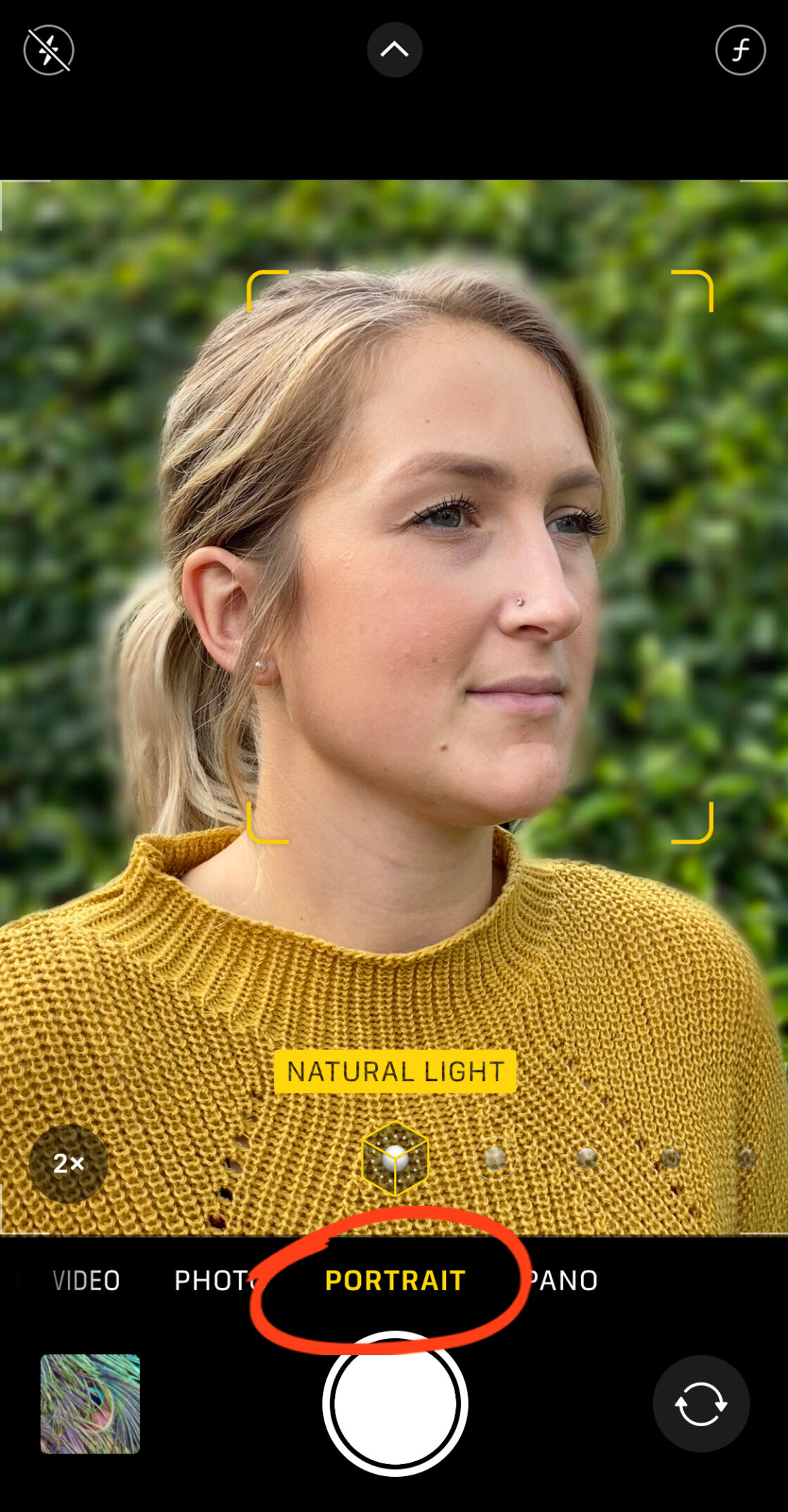
Step-by-Step Execution
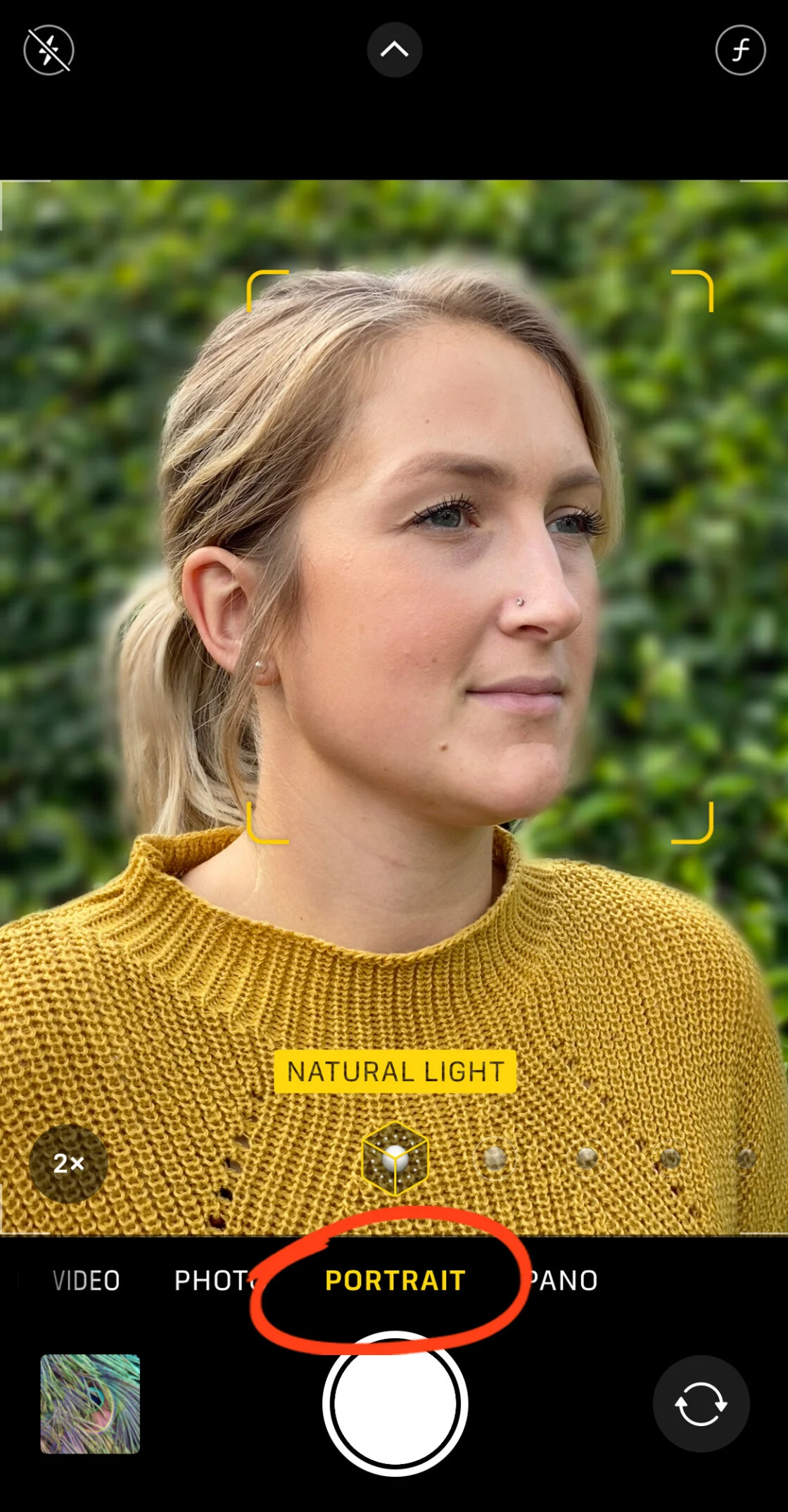
- Selection: Launch the Camera app and swipe the mode selector to "Portrait."
- Positioning: The software typically requires the subject to be between two and eight feet away. If the camera is too close or too far, a prompt on the screen will instruct the user to adjust their distance.
- Lighting and Feedback: The interface will highlight the subject with a yellow box. Once the "Natural Light" or "Depth Effect" indicator turns yellow, the depth map has been successfully calculated.
- Capture: Press the shutter button to finalize the image.
Post-Capture Customization
On modern devices (iPhone XS and later), the intensity of the blur is not fixed at the time of capture. Users can modify the "Depth Control" by following these steps:
- Open the photo in the Photos app and select Edit.
- Tap the f/number icon (Aperture) in the top-left corner.
- Adjust the slider at the bottom. A lower f-number (e.g., f/1.4) increases the blur, while a higher f-number (e.g., f/16) brings more of the background into focus.
Furthermore, Portrait Lighting effects—such as Studio Light, Contour Light, and Stage Light—can be applied to alter the perceived depth and mood of the photo, further separating the subject from its environment.
Achieving Optical Blur Without Portrait Mode
While software-driven blur is convenient, it is also possible to achieve a natural, optical blur on any iPhone model by leveraging the principles of macro photography. This method does not rely on algorithms but on the physical distance between the lens and the subject.
The "Get Closer" Principle
The depth of field becomes narrower as the distance between the camera and the subject decreases. By moving the iPhone within inches of a subject—such as a flower, an insect, or a detail of a garment—the background will naturally fall out of focus.
- Focus Locking: Open the Camera app and move close to the subject.
- Manual Override: Tap and hold on the subject on the screen until "AE/AF LOCK" appears in yellow. This ensures the camera does not shift its focus to the background.
- Background Distance: For the most dramatic effect, ensure the background is as far away from the subject as possible. A subject three inches from the lens with a background ten feet away will yield a much smoother blur than a subject with a wall directly behind it.
For users seeking professional-level macro capabilities, third-party hardware such as the Moment Macro Lens can be attached to the iPhone, allowing for a focus distance of just 10mm-30mm and creating an incredibly shallow depth of field that rivals high-end specialized cameras.
Advanced Post-Processing: Third-Party Solutions
When a photo is captured in standard "Photo" mode without depth data, or if the user is operating an older device, third-party applications provide a robust alternative for adding blur.
AfterFocus: Precision and Motion
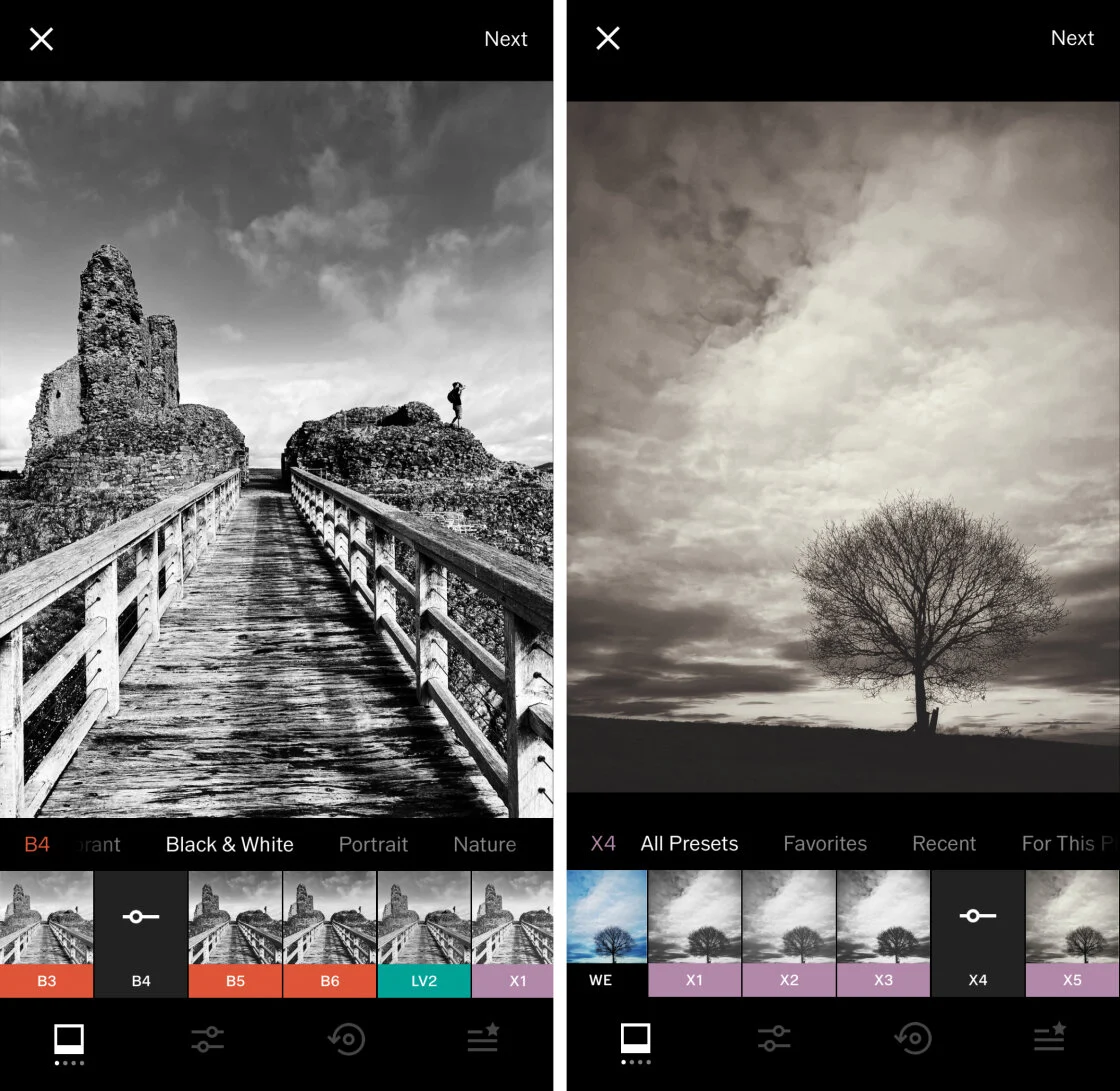
AfterFocus is a dedicated tool for simulating shallow depth of field. It utilizes a "Smart Selection" system where the user draws a rough line over the foreground subject and a separate line over the background.

- Manual Masking: For complex subjects, such as a cyclist with spokes or a person with wispy hair, the app allows for manual "brushing" to refine the mask.
- Lens Modeling: AfterFocus offers different blur styles, including "Lens Blur" (simulating a standard camera) and "Motion Blur" (simulating a subject moving at high speed).
Snapseed: The Blurred Vignette
Snapseed, owned by Google, offers a "Lens Blur" tool that is particularly effective for creating a dreamy, tilt-shift aesthetic.
- Radial Blur: The tool places two concentric circles over the image. The inner circle remains sharp, the outer circle is blurred, and the space between them represents a gradual transition.
- Vignetting: Users can simultaneously adjust the "Vignette Strength," darkening the edges of the frame to further emphasize the central subject. This technique is frequently used in wedding and fine-art photography to create a "halo" effect around the subject.
Broader Impact and Industry Analysis
The ability to blur backgrounds on mobile devices has had a profound impact on several sectors, from social media marketing to digital journalism. In the "Attention Economy," where users scroll through hundreds of images daily, subject isolation is a key psychological trigger for engagement. High-contrast, blurred-background images are statistically more likely to stop a user’s scroll than "flat" images where the foreground and background compete for attention.
Furthermore, the rise of "Pro" mobile photography has led to the "Prosumer" movement. Small business owners and independent creators no longer need to invest $2,000 in a full-frame camera setup to produce high-quality promotional materials. Market data suggests that the global smartphone camera market is expected to continue its growth at a CAGR of over 7% through 2030, driven largely by these computational advancements.
However, industry experts note that while AI-driven blur is nearly indistinguishable from optical blur on a small screen, "artifacts" can still occur. These usually manifest as blurring at the edges of eyeglasses or the spaces between fingers. As Apple continues to integrate more powerful Neural Engines and larger sensors, the gap between the iPhone and professional cinema cameras continues to close.
Conclusion: The Future of Mobile Imaging
The capability to blur backgrounds on an iPhone is no longer a mere "filter" but a sophisticated integration of optics and artificial intelligence. Whether through the automated precision of Portrait Mode, the physical proximity of macro shooting, or the creative control of third-party apps like Snapseed and AfterFocus, users have a diverse toolkit at their disposal. As we move toward a future where LiDAR and 48-megapixel sensors become standard across all models, the distinction between "mobile snapshots" and "professional photography" will likely vanish entirely, leaving the quality of the image solely in the hands of the creator’s vision.